From Friction to Conversion: UX That Won a Customer
Designing for a key initiative to bridge parity with a major competitor
Overview
As Nutanix matured, our core hypervisor, AHV, lacked a couple of key features compared to our major competitor at that time, VMware. One of those features was VM Templates. As the name suggests, a VM Template is like a “cookie cutter” which is used to create a bunch of Virtual Machines (VMs) at the same time.
Why do IT Administrators care about VM Templates?
Templates save a lot of time
Templates help enforce compliance on virtual workloads
Better management of Virtual Desktop Infrastructure (VDI), where users access remote desktops from their client machines
Needless to say, there was a lot of anticipation among existing Nutanix users to use VM Templates. And for new users, we would be prepared for their workloads and infrastructure processes.
Impact
External
+37%
Hypervisor Adoption Rate
Over time, this project and others contributed to the uptick of a key adoption metric for Nutanix, “AHV Adoption as a % of Total Cores”. As of Nov 2024, the adoption rate is up to 72% (compared to 35% back in 2018).
Internal
😄
Increase in Sales Confidence
Nutanix no longer needed to support the workaround of using powered-off VMs as “golden images” as we had native VM Templates now. No more embarrassing sales discussions with new customers.
Testimony
VM Templates was released in January 2022. I worked closely with the PM on this project. After delivery, they had this feedback to share:
FYI. Some positive feedback, I was talking to AB (cloud architect) about VM templates. He tested the build with templates. Nice work Navdeep! This is the kind of feedback I like to hear, a foundational feature we’ve been waiting to get to market vs. ESXi (VMware's hypervisor).
LC,
Product Manager
I already played with that first cut…. it's like butter! Finally..
Already showed some SEs last month and they love it. It’s sooo easy (like it should be)
AB,
Cloud Architect
The Problem
Back in 2018, Nutanix still lacked this core functionality of VM Templates. This was impacting a lot of deals with customers migrating from VMware as a lot of their workflows would depend on a VM Template entity. There were also no APIs to support automation which worsened the situation.
The Solution
A product manager and myself started off this project without Engineering, and talked with a lot of users and stakeholders to understand the need. New UX workflows were designed to implement VM Templates on Prism, the management GUI for private cloud.
Role
Lead UX Designer
Duration
~2 yrs
Status
Released in Jan 2022
Tools
Sketch
Abstract
Slack
Zoom
Google Workspace
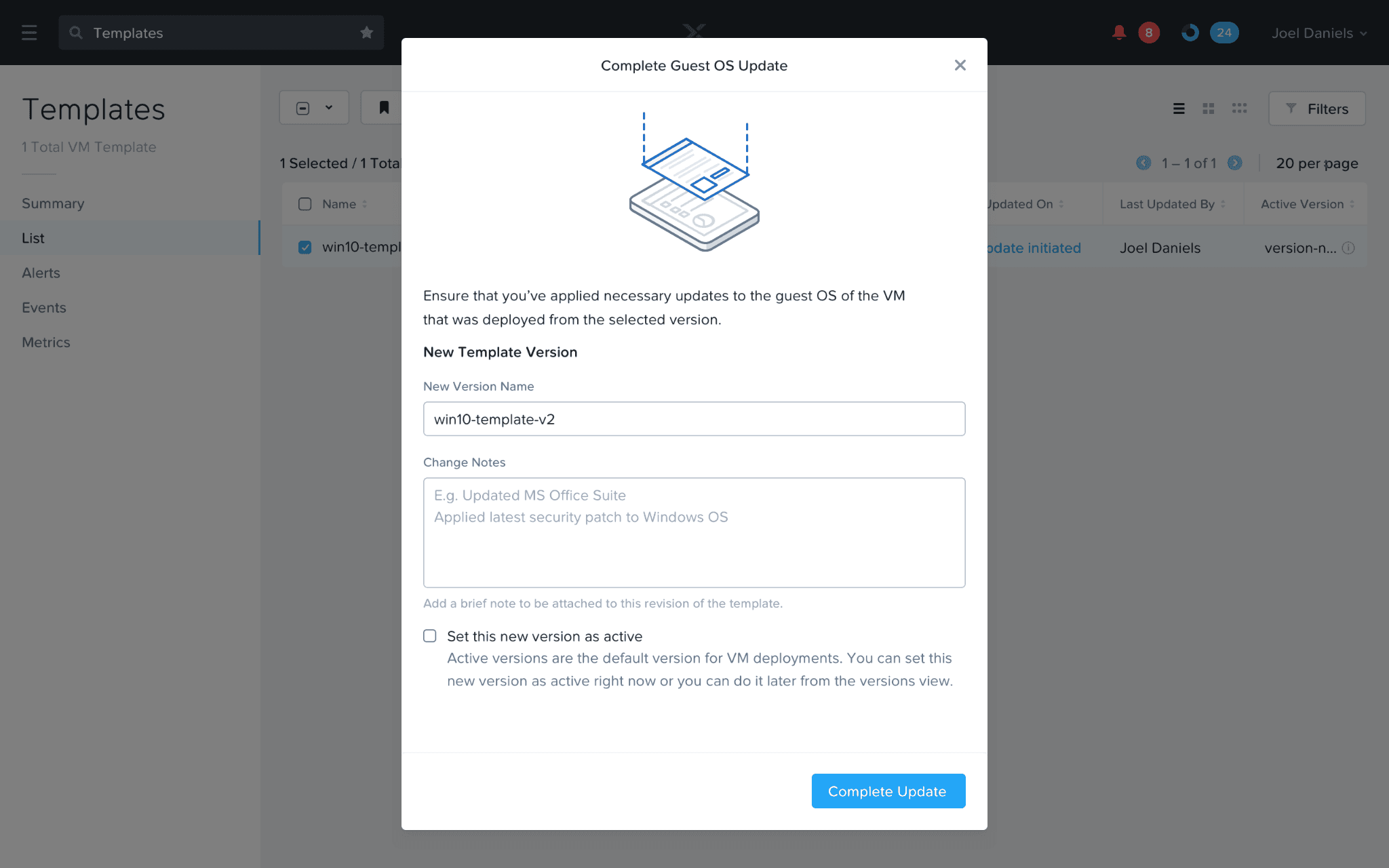
VM Templates UX showing conclusion of guest OS update workflow
How I helped close a $50k sales deal by demonstrating Templates UX
After finalising the designs, I conducted multiple feedback sessions with Nutanix users to validate the approach. A PM I worked with recommended me to the Sales team, who were negotiating with US Cellular (mobile network operator).
I presented key workflows of the new VM Templates, showing how they aligned with US Cellular’s needs—and it worked! Within a week of the demo, US Cellular placed their first order with Nutanix.
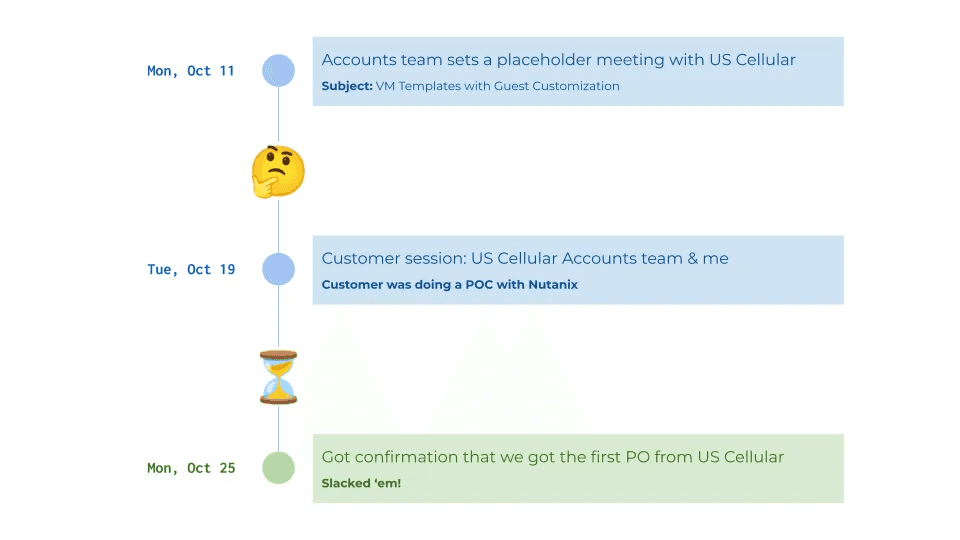
High-level timeline of the events in 2022
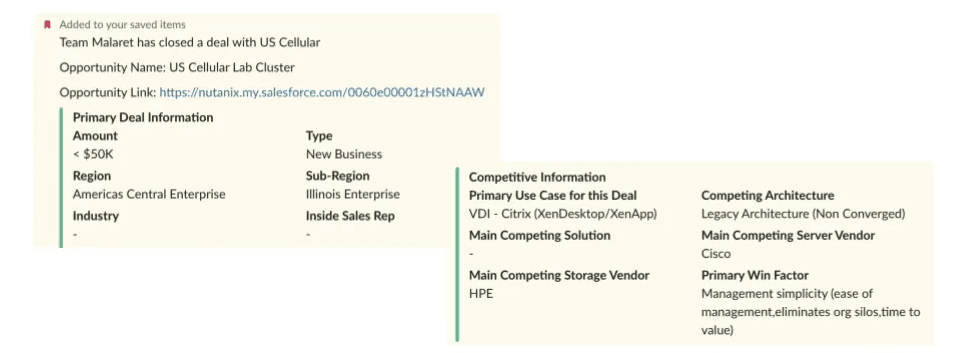
Screengrab showing a $50k deal between US Cellular and Nutanix
Some testimonials from the sales team:
Thank you for sharing today! Great job and it looks fantastic!
We have been trying to get US Cellular for 3 years!!!
SM,
Sr. Systems Engineer
You did a great job and we got the PO (purchase order).
TH,
Principal Cloud Architect
Discovery
Nutanix without VM Templates
Prism is the native web GUI that admins use for managing virtual infrastructure. Typical day-to-day operations include creating/updating VMs, which are often created from VM Templates. These VM Templates are typically signed off with a Guest OS, the right security updates, and other guest tools and software the VM user might need. Without VM Templates, this process becomes very tedious as it leads to managing numerous VMs each with a new guest update.
Users resorting to workarounds
Without VM Templates, users of Nutanix (Prism) had to come up with workarounds to emulate its functionality. Typically, a user would create a VM with desired guest OS updates, then power that VM down, after which they will clone this VM to create multiple copies. Admins refer to these VMs as “golden images”.
Some problems with this workaround:
The “golden image” VM is aggregated alongside the list of VMs making it hard to find for future use
If another user powers on this “golden image” VM, the initial guest customization settings are lost, and the admins would need to recreate this “golden image”
Competitive outlook
I looked at VMware’s VM Templates closely as that was cited most often when talking with project stakeholders. And since we were aiming to bridge parity with users migrating from VMware, we had to ensure to provide a better user experience to make a good first impression for those users.
Although VMware had native VM Templates, their workflow to apply Guest OS updates involved the user making a lot of hops to different entity views. This seemed like a major point of friction in the user experience.

VMware’s vSphere Client:
Converting a Template to a VM for updating guest OS
Key differentiator: Update Guest OS workflow
A VM Template is like a snapshot of an OS back in time. This means, every time the underlying guest OS is updated, it leads to the creation of a new entity, or a “version”. This “version” is typically a VM or a VM snapshot. As administrators apply updates to many Templates, it becomes difficult to manage all these versions.
Moreover, VMware’s process required a lot of context switching as it was more entity-driven than being intent-driven. In other words, we needed to introduce new workflows like “Initiate Guest OS Update” and “Complete Guest OS Update” from the perspective of the users’ intent.
For the user story of an admin applying a guest OS update to a template, here’s how we differed from VMware:
VMware's process
It requires the user to jump to different views and is more entity-centric.
Go to Templates view
Select the Template
Convert the Template to a VM
Go to VMs
Find the VM
Launch the VM
Apply guest OS updates to this VM
Convert the VM to a Template
Done
Our proposal
We automated the creation of VM and introduced user-centric workflows.
Go to Templates view
Select the Template
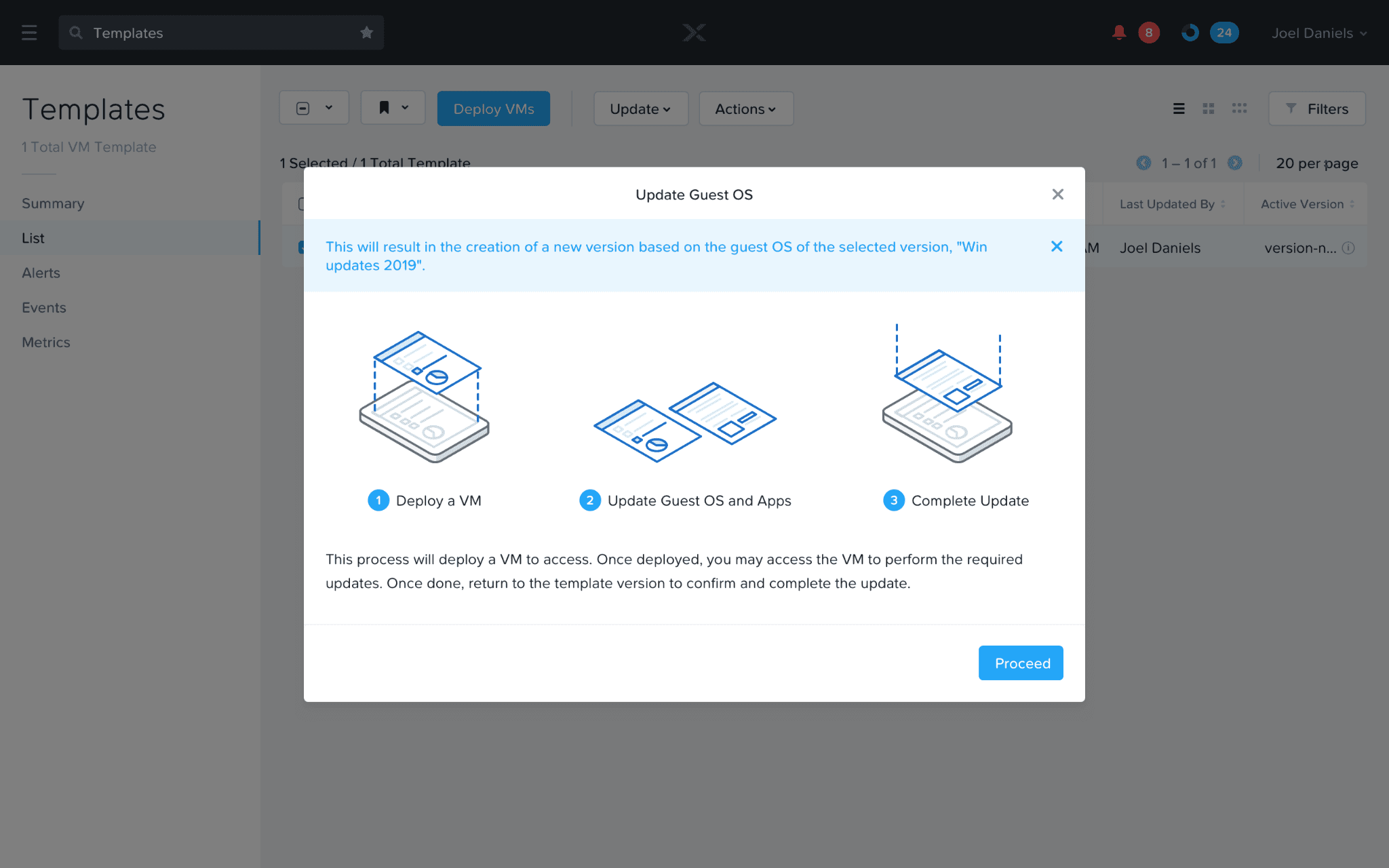
Choose: “Initiate Guest OS Update”
(A VM gets created in the background and access information is shown to the user)
Launch the VM
Apply guest updates to this VM
Choose: “Complete Guest OS Update”
(A new versions is created part of this Template)
Done
Understanding and defining the Template life cycle
Once the guest OS update workflow was defined on a high-level, we introduced the concept of “template versions”. A Template Version is created every time a user updates the templates’ guest OS. It contains the metadata config as well as point-in-time information about the disks that are part of the Template. These versions also enable admins to rollback to an older version in case the new updates have any config issues.
Since a template can have multiple versions, we also needed to define from which version would the VMs get deployed from by default. For that we introduced the concept of Active Version. An Active Version acts as the face of the Template i.e. any VMs deployed from a Template takes config and disks that are part of its Active Version.
In a gist, a VM Template is just the “active version” among a bunch of “versions” all originating from the same root template.
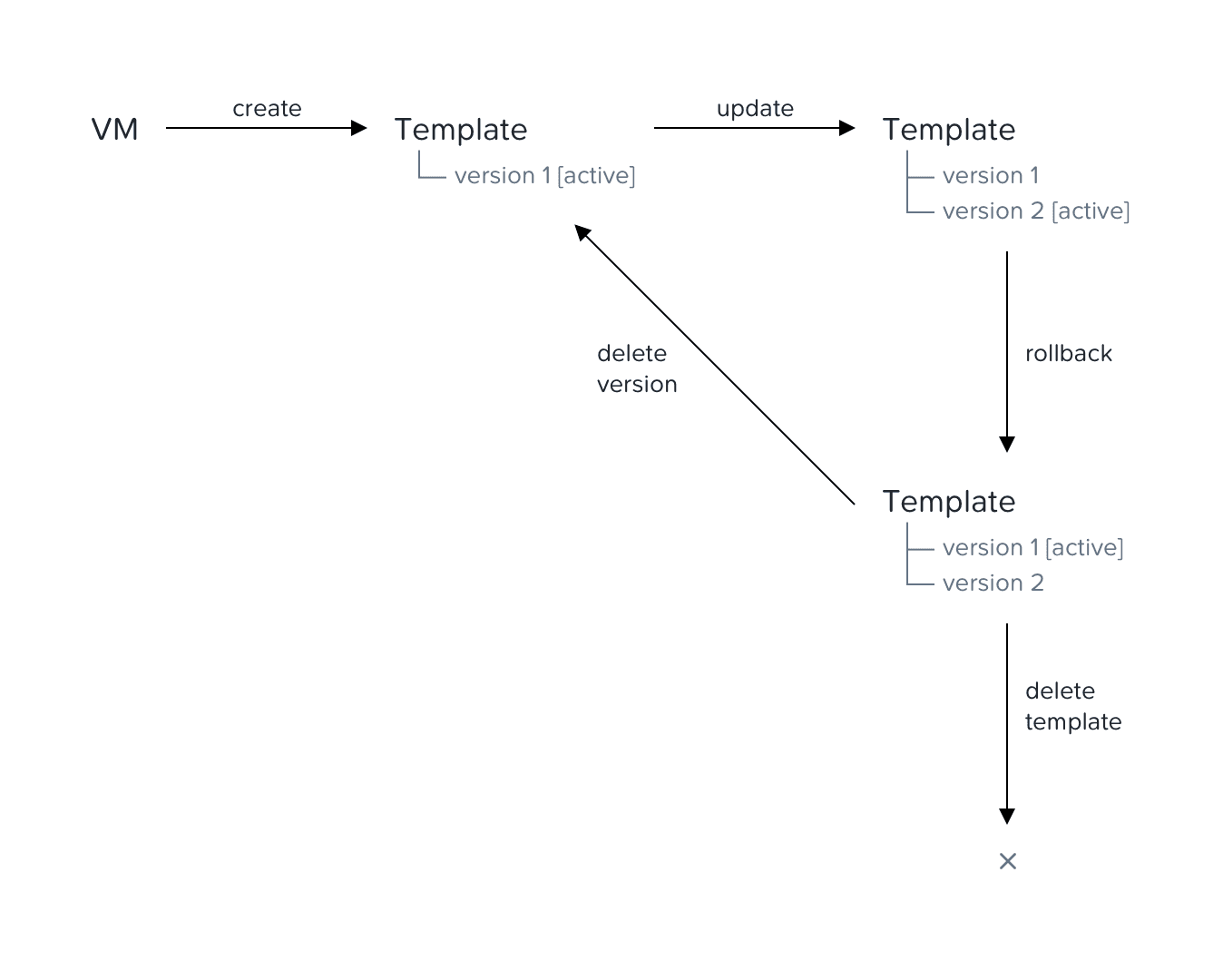
Concept diagram showing lifecycle of a VM Template entity
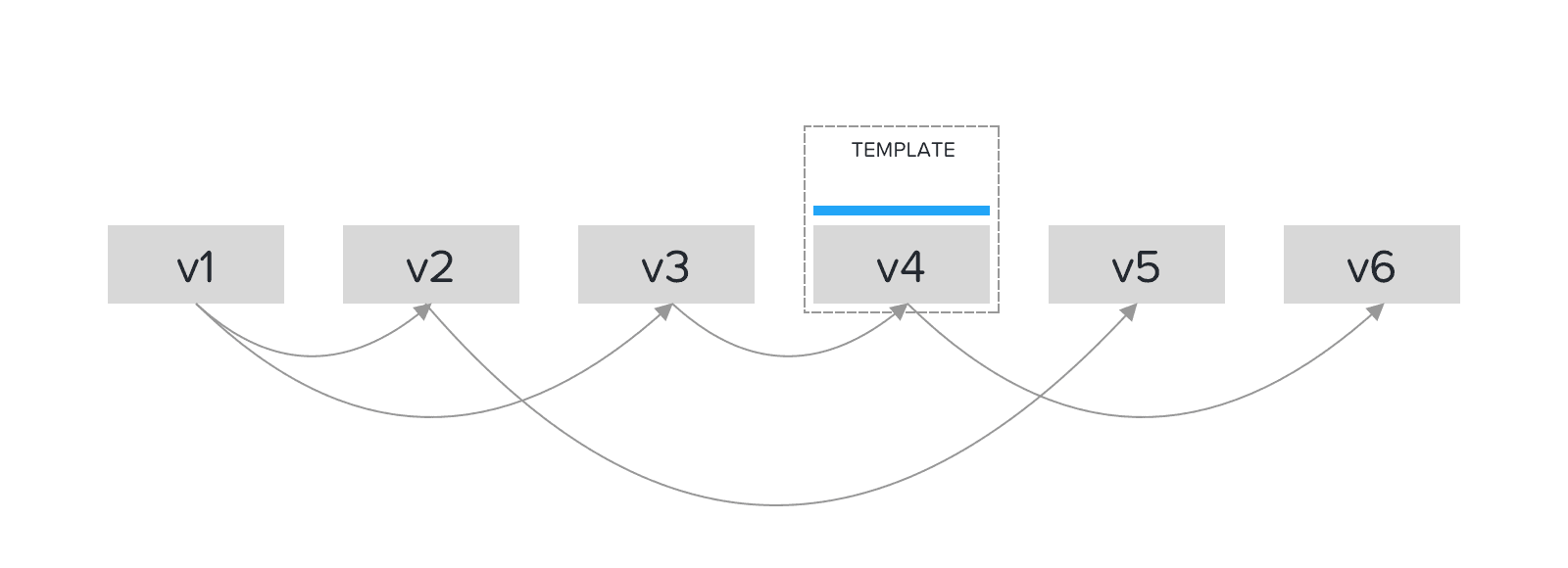
A Template can have multiple versions, but only one “active version”
Use cases defined
VM Templates enable a lot of use cases in the cloud computing world. Most of them lead to saving time for creating similar instances, and ensuring compliance setup by internal IT departments.
Virtual Desktop Infrastructure (VDI)
For VDI, admins create VM Templates for their users belonging to the same departments. These users access VMs created from Templates on their remote desktops. For example, in an organisation, an admin might create a VM Template for the finance group, and they could have a separate VM Template for the HR group.
Server virtualization
Admins also have templates for web servers so that in case of demand, they can create an instance of the server using this template. This saves a lot of time for the admin.
Design
User stories
We identified the following user stories for VM Templates:
As an admin, I want to create a MS Windows Server VM template so that I can deploy similar server VMs without having to perform the same steps again and again.
As an admin, I want to update my MS Windows Server VM template’s guest OS so that I can apply the latest security patches on it.
As an admin, I want to deploy 5 windows server VMs from a template to my cluster so that I can start the web server.
As an admin, I want to delete a VM template because I no longer need it.
1. Creating a VM Template
User Story: As an admin, I want to create a MS Windows Server VM template so that I can deploy similar server VMs without having to perform the same steps again and again.
The workflow starts from the VM view where an admin can create a VM Template based on this VM.
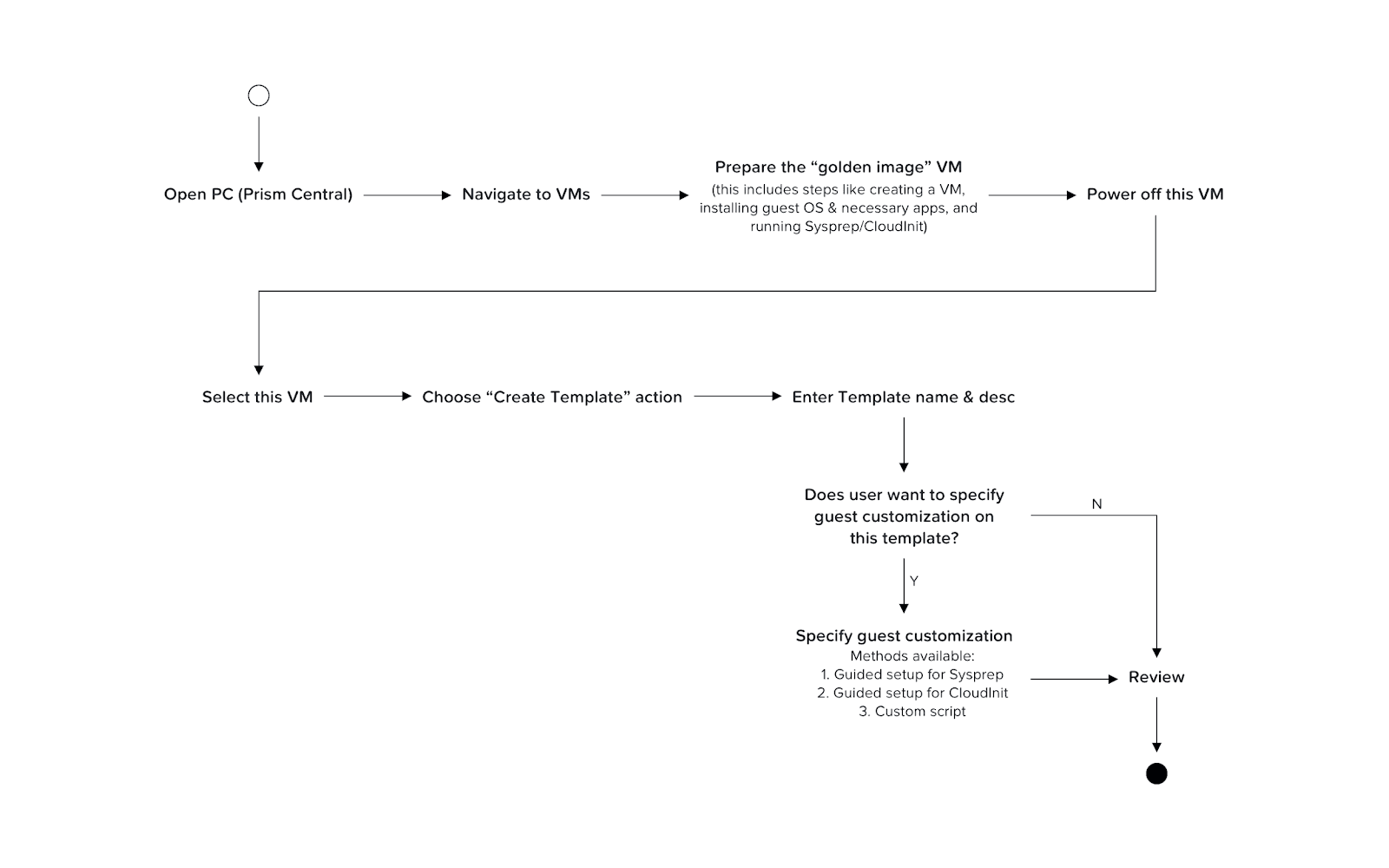
User flow diagram for creating a VM Template
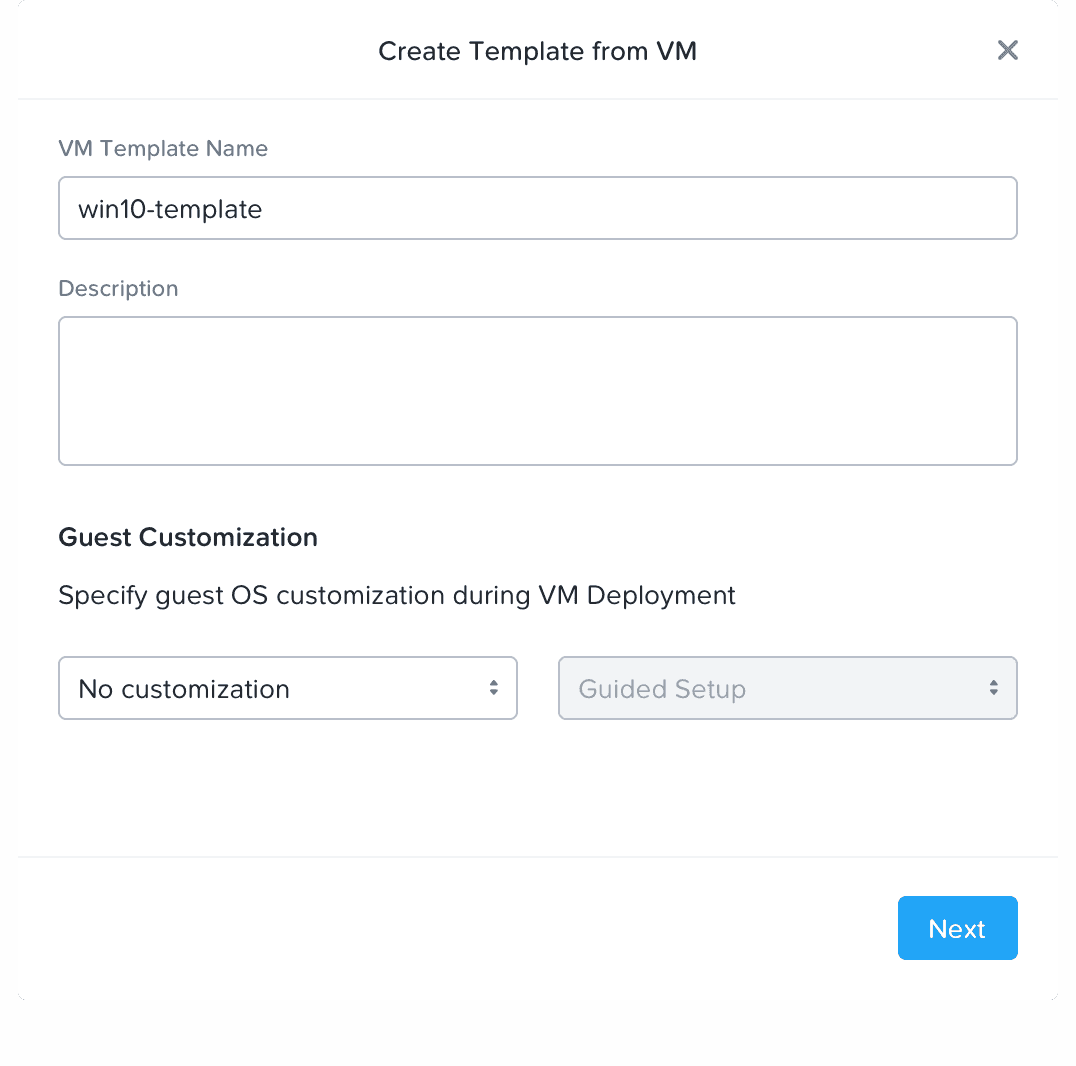
Creating a VM Template with no customization (pop-up)
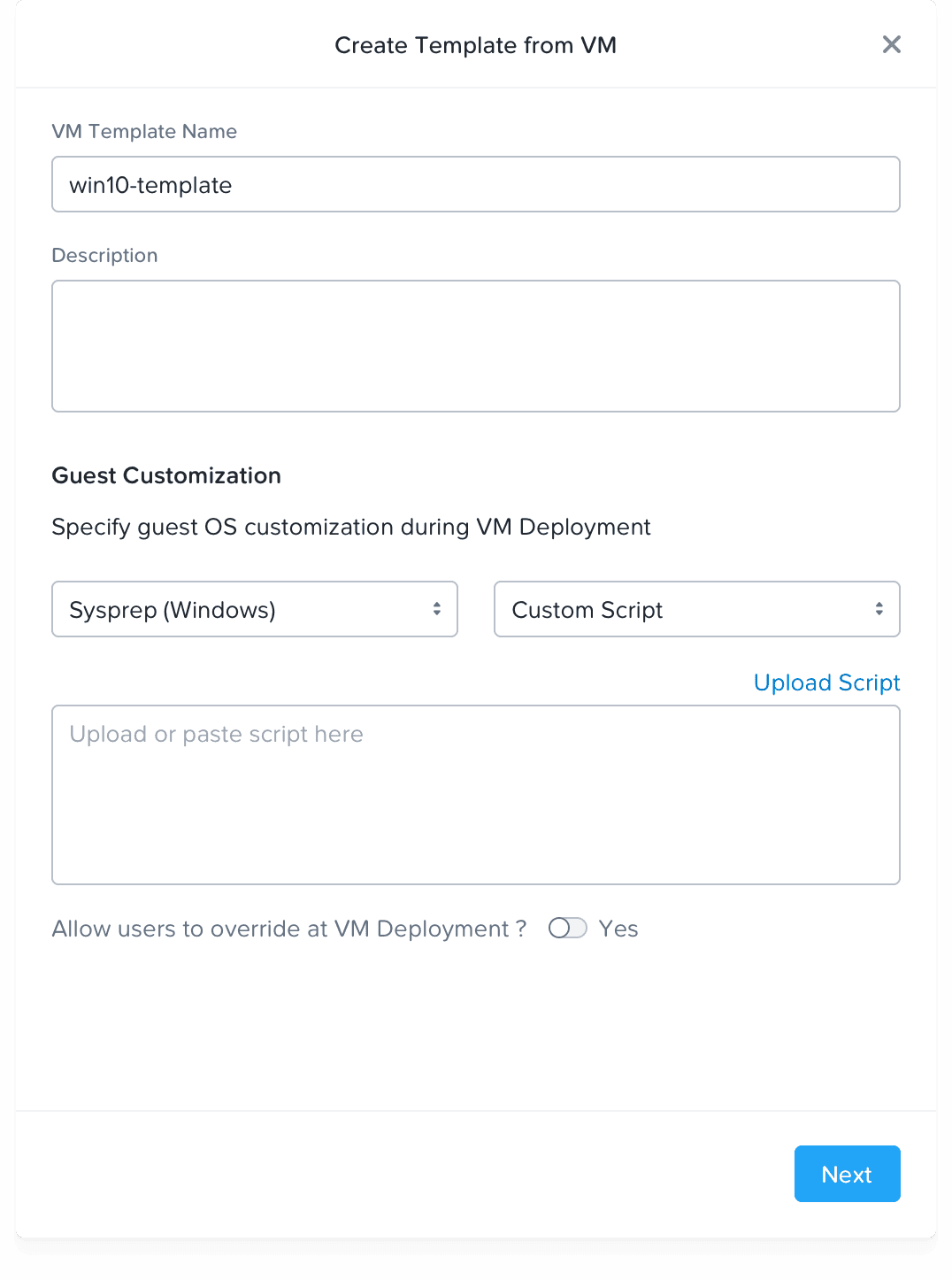
Creating a VM Template (pop-up)
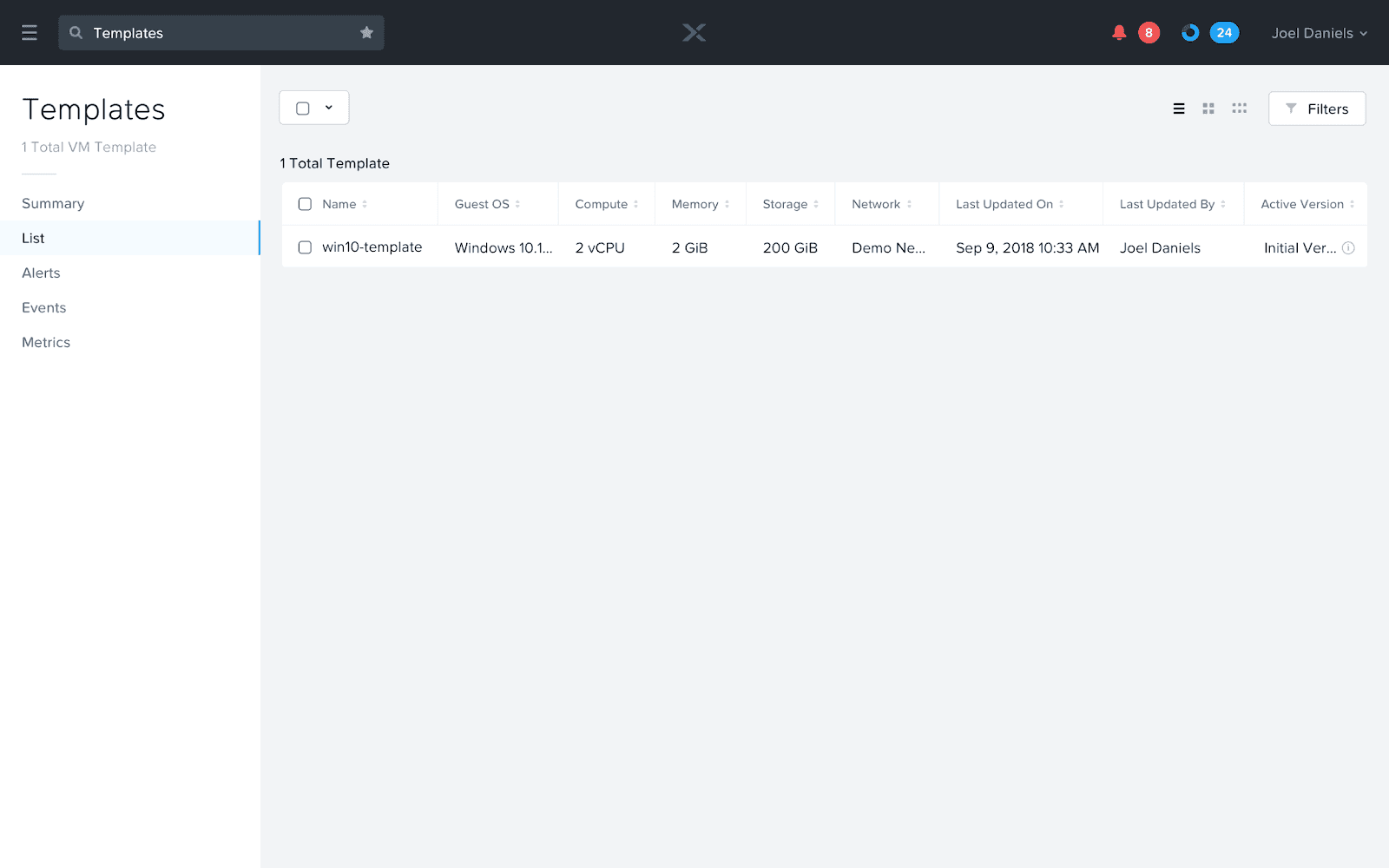
VM Templates list view
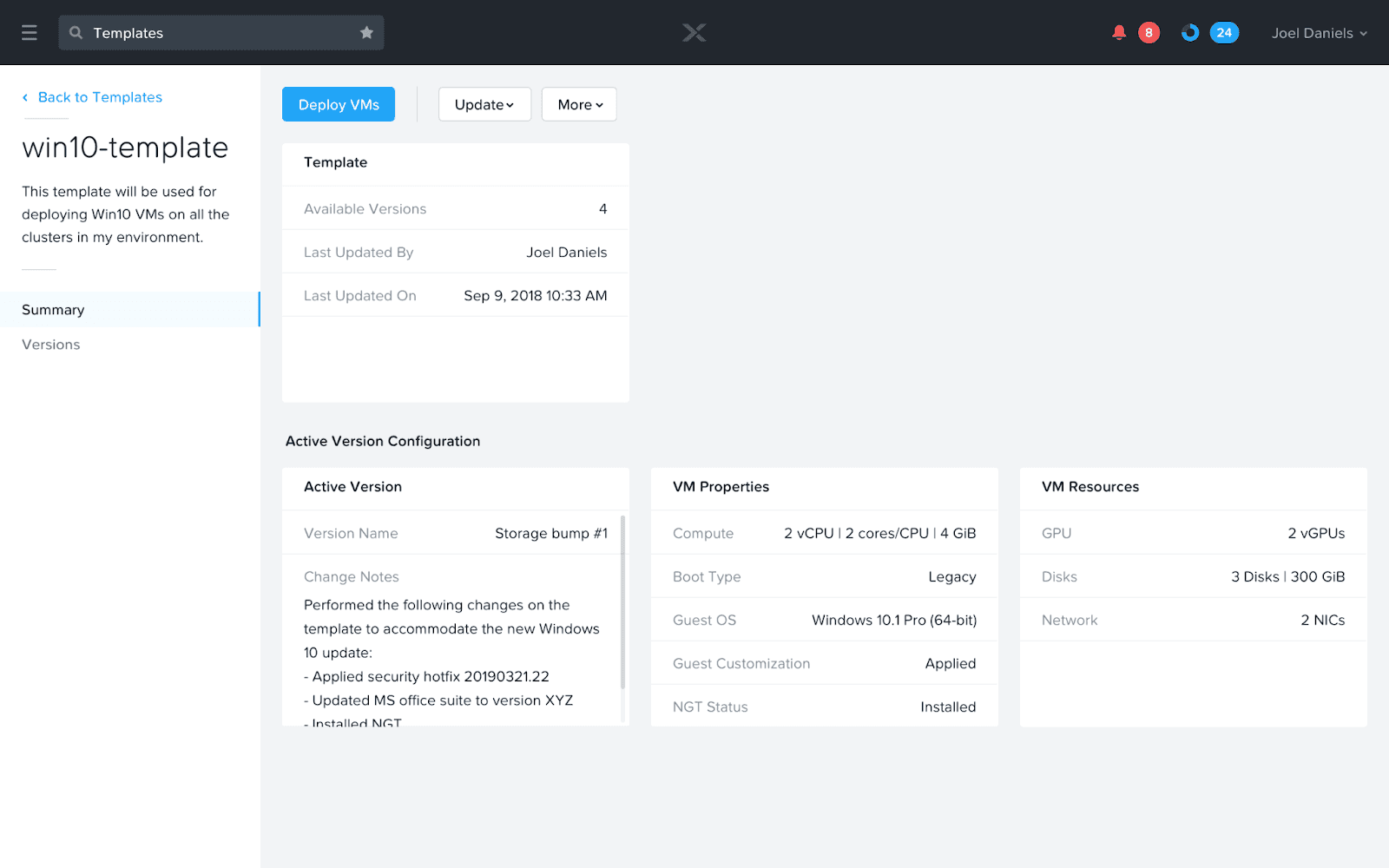
The details view of one VM Template
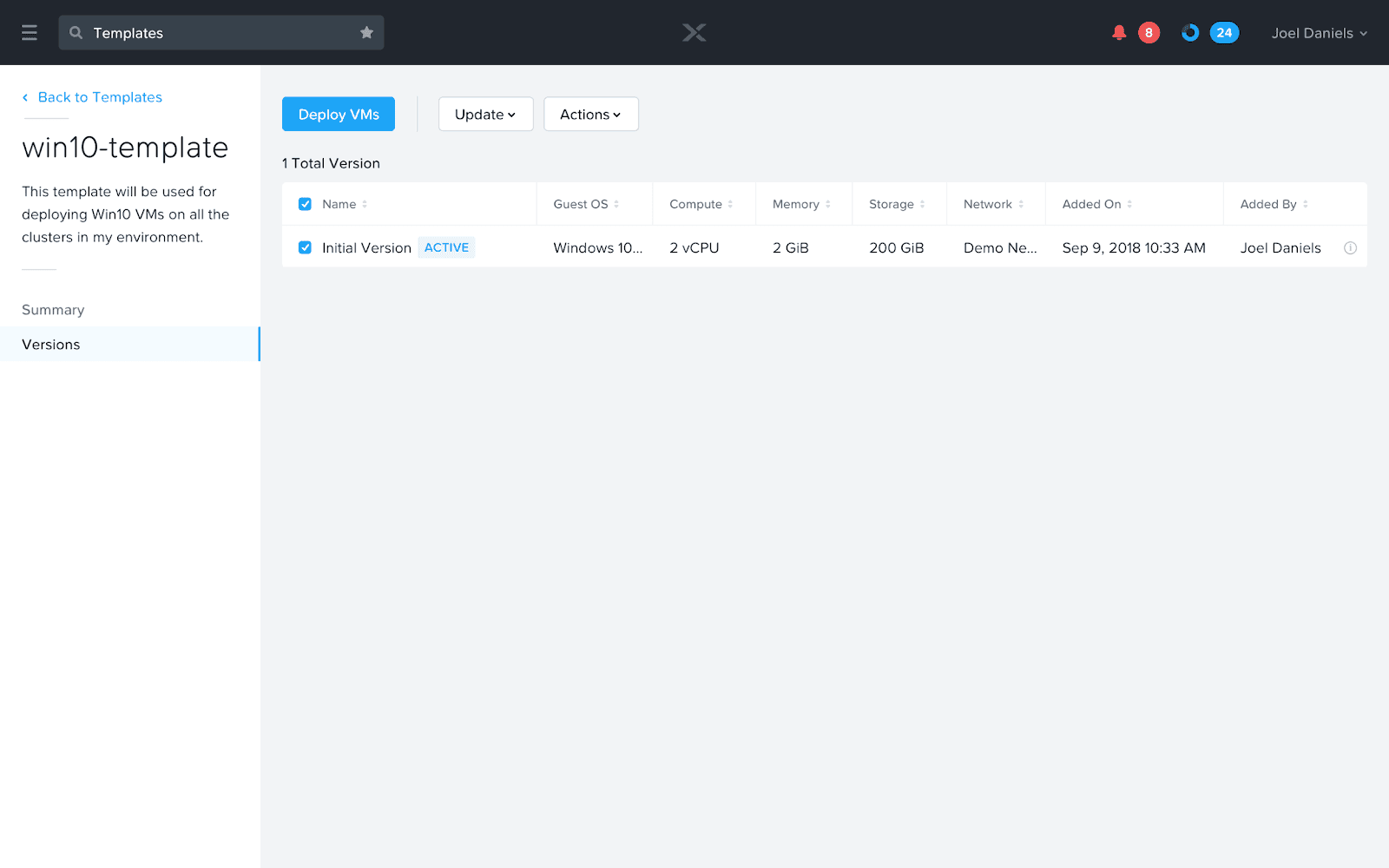
The Versions view showing an initial version created for the selected VM Template
2. Updating a VM Template’s Guest OS
User Story: As an admin, I want to update my MS Windows Server VM template’s guest OS so that I can apply the latest security patches on it.
This user story was the key differentiator of this project, as we made the workflow much more user-driven and tried to automate a few things under the hood.
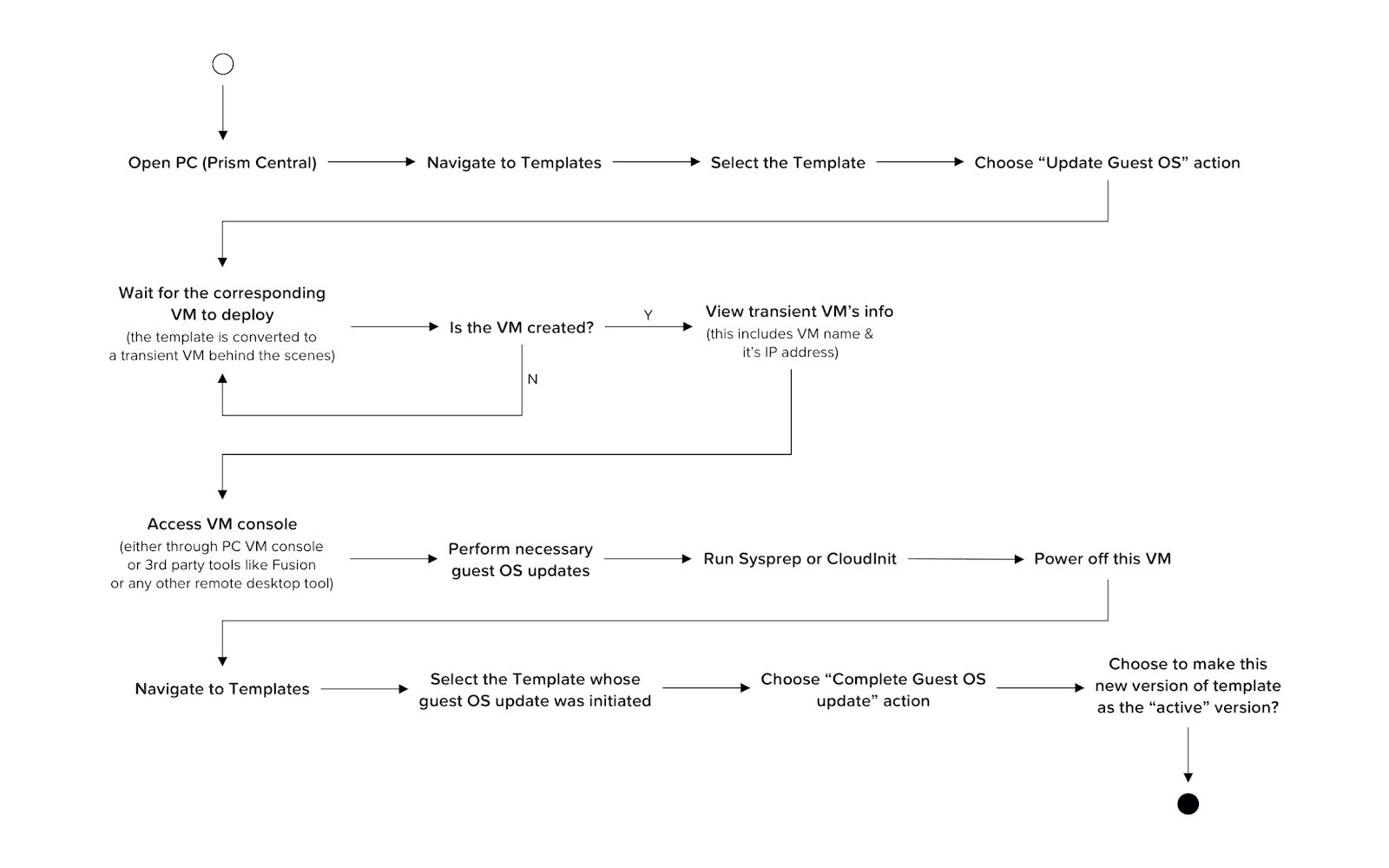
User flow diagram for updating a VM Template
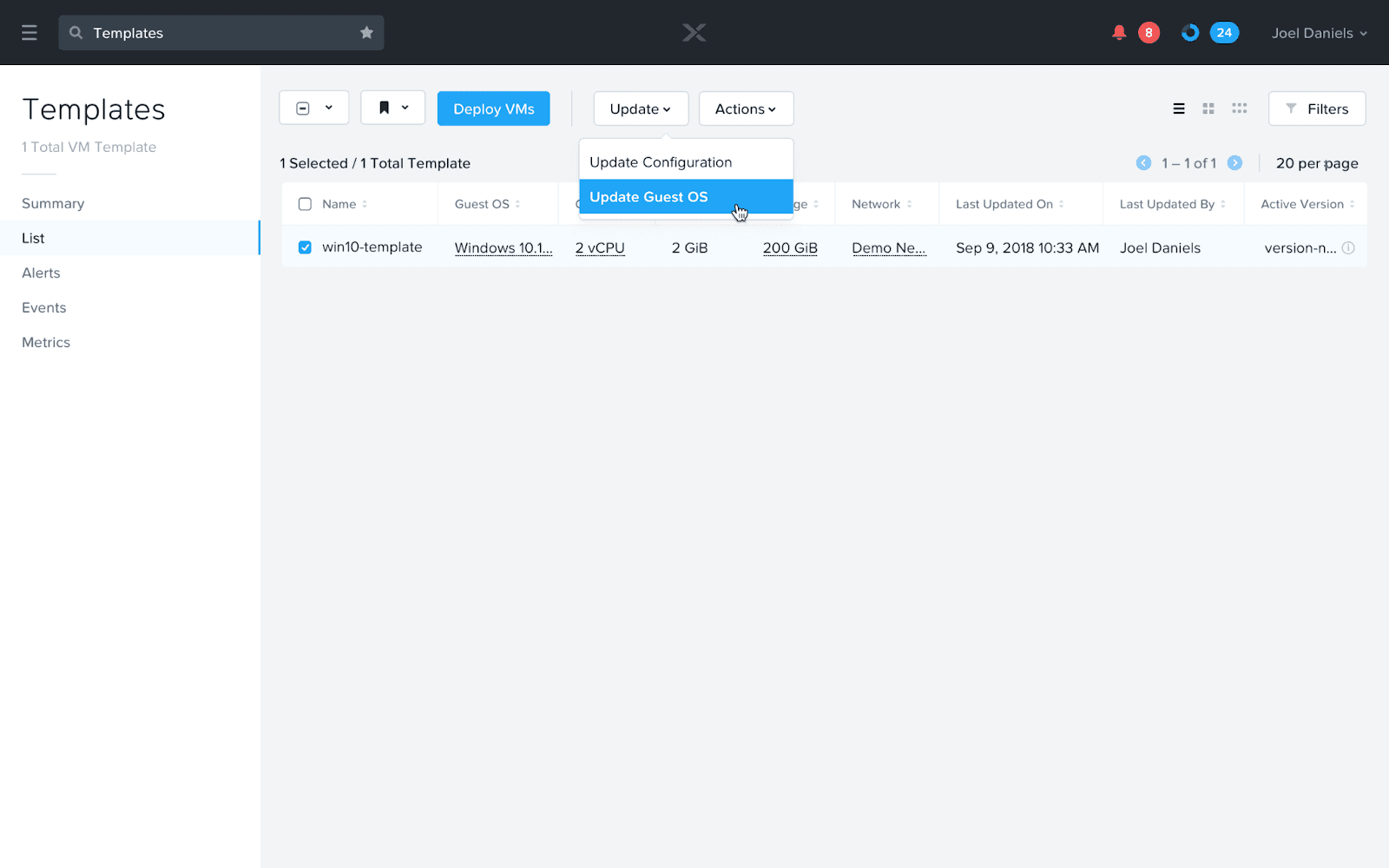
User selects a VM Template and chooses the “Update Guest OS” action
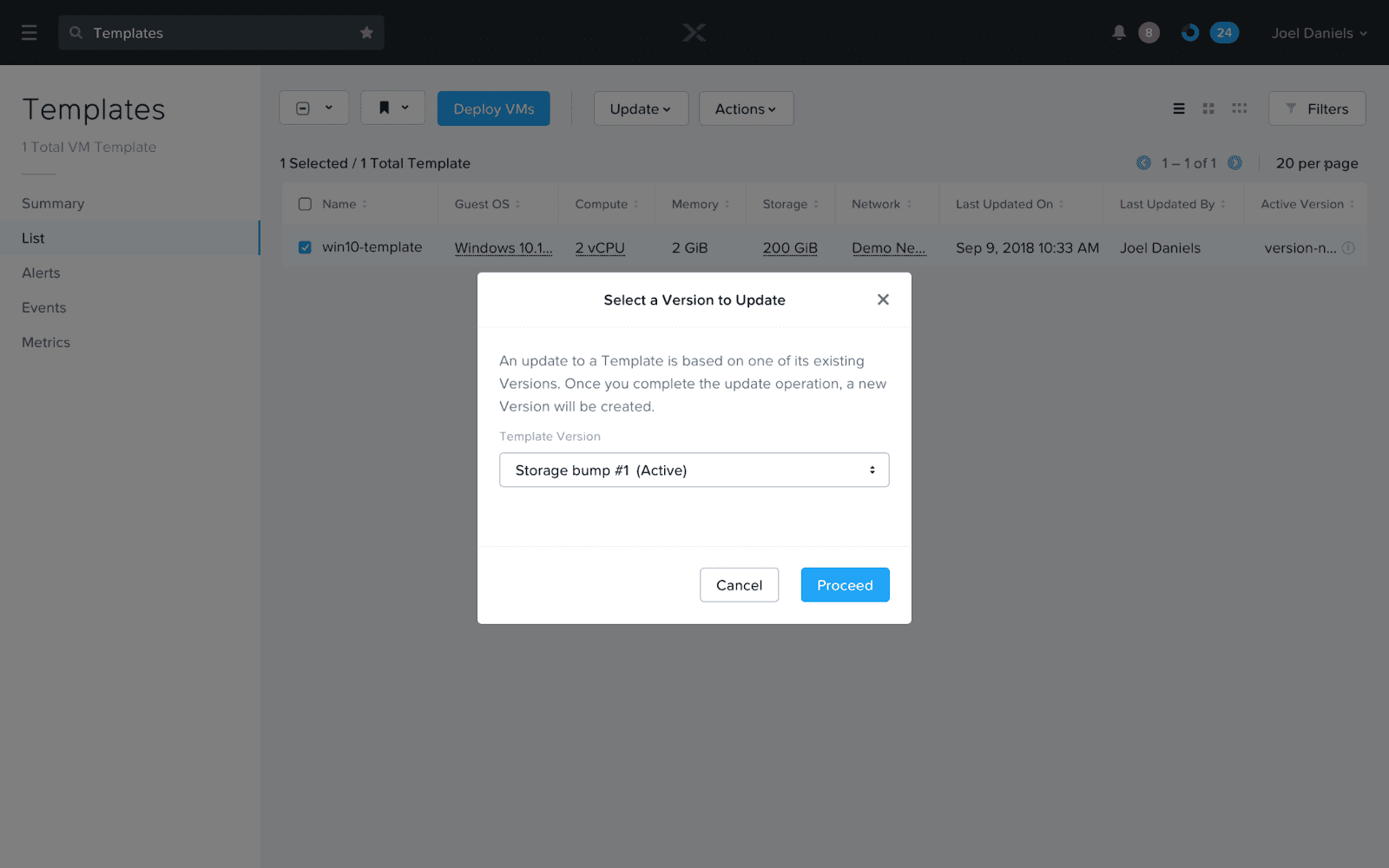
User is prompted to select which template version they wish to update
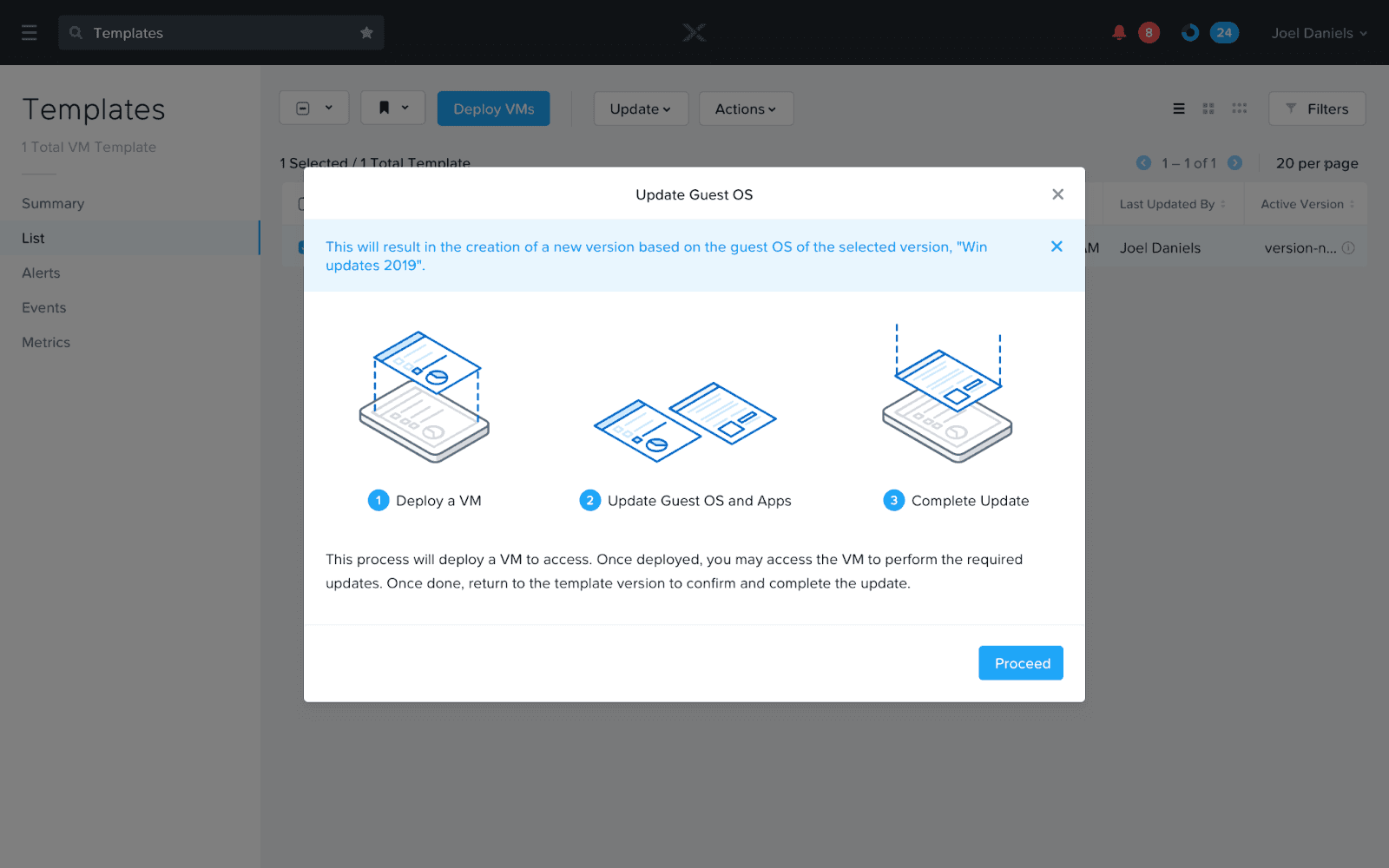
An overview of the process is shown to the user
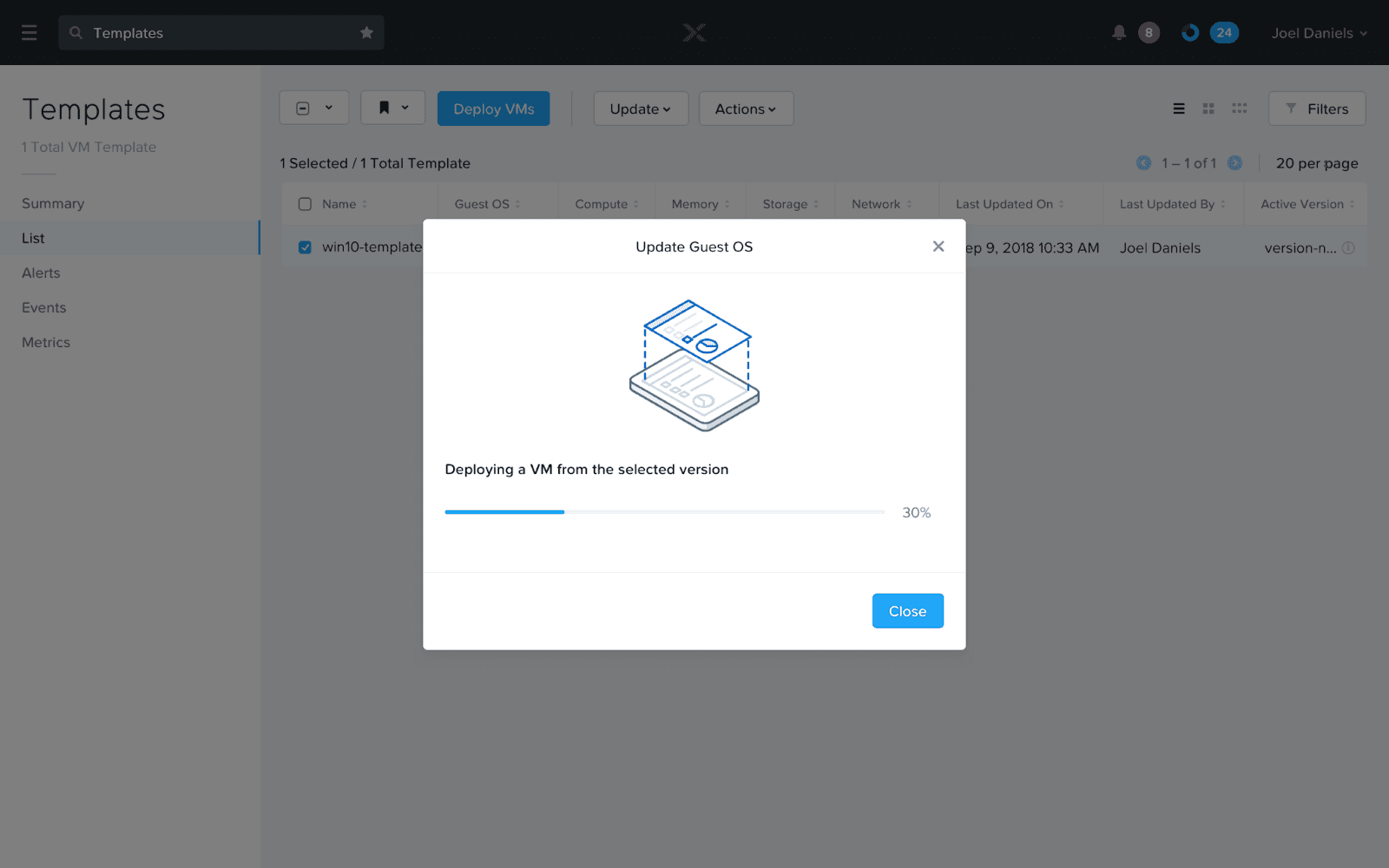
A VM is deployed for the user
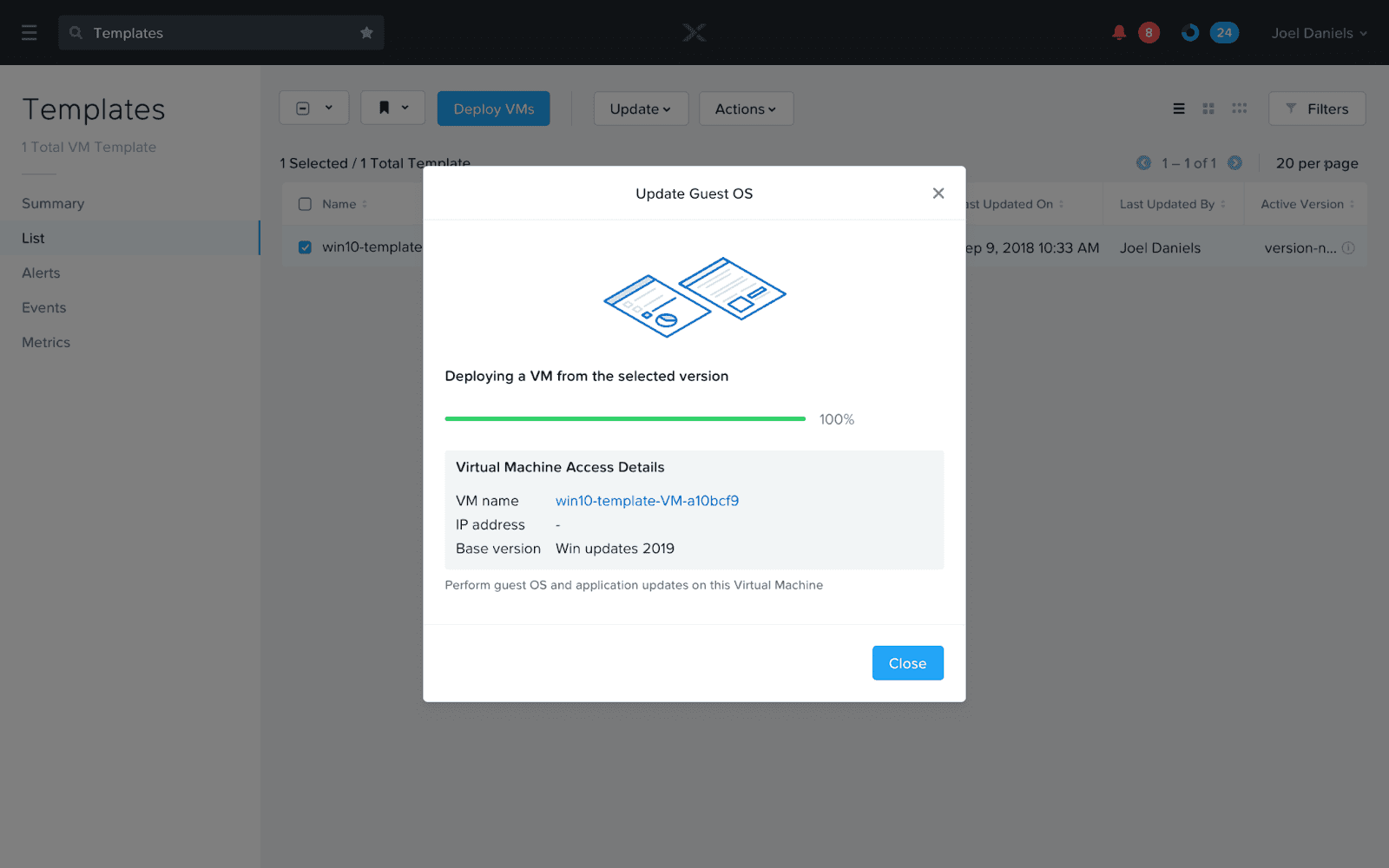
Once the deployment completes, the VM information is shared with the user so they can apply necessary guest OS updates

User can access the VM information anytime by clicking on this link
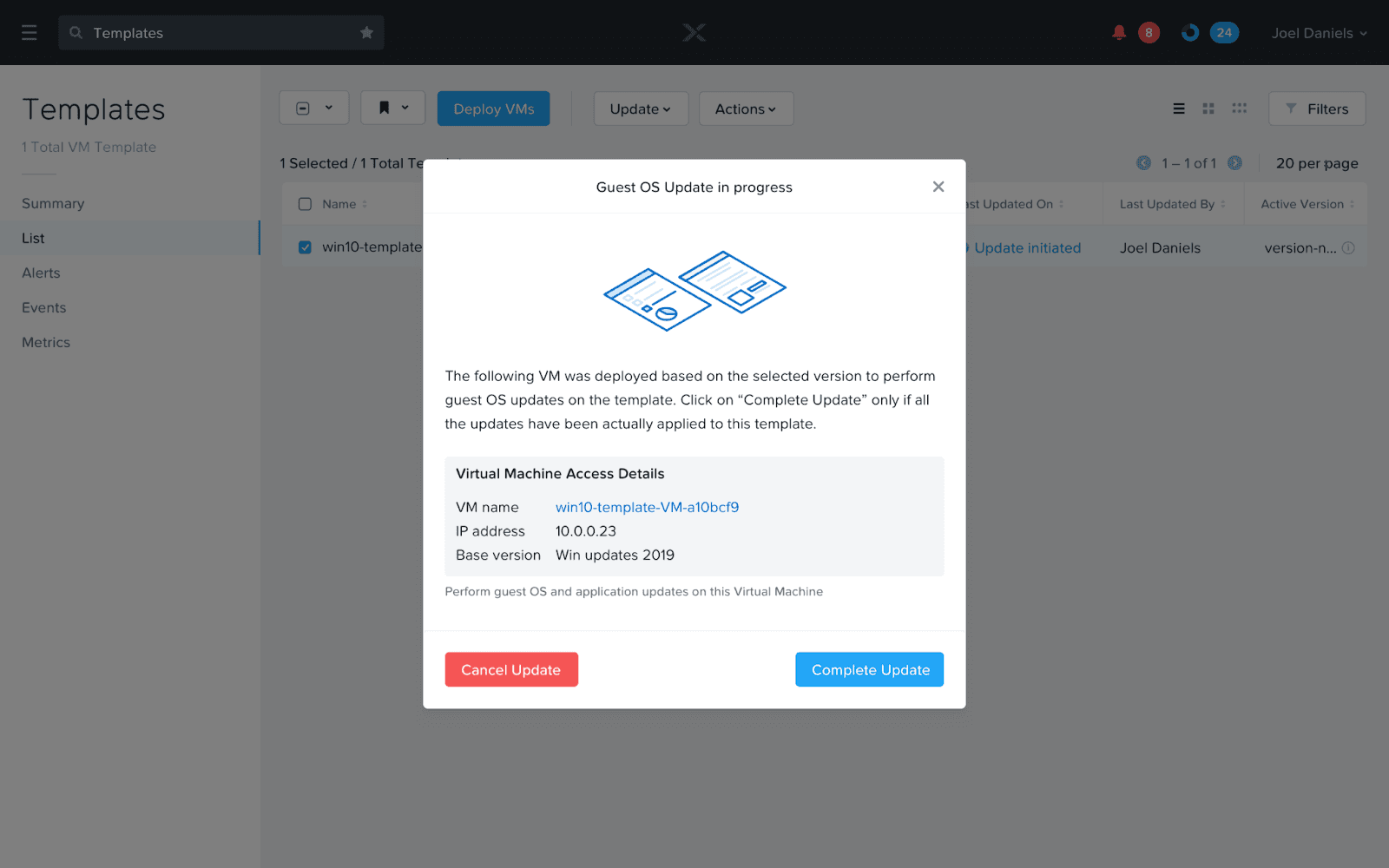
A dialog is presented to the user from where they can either choose to cancel or complete the update workflow
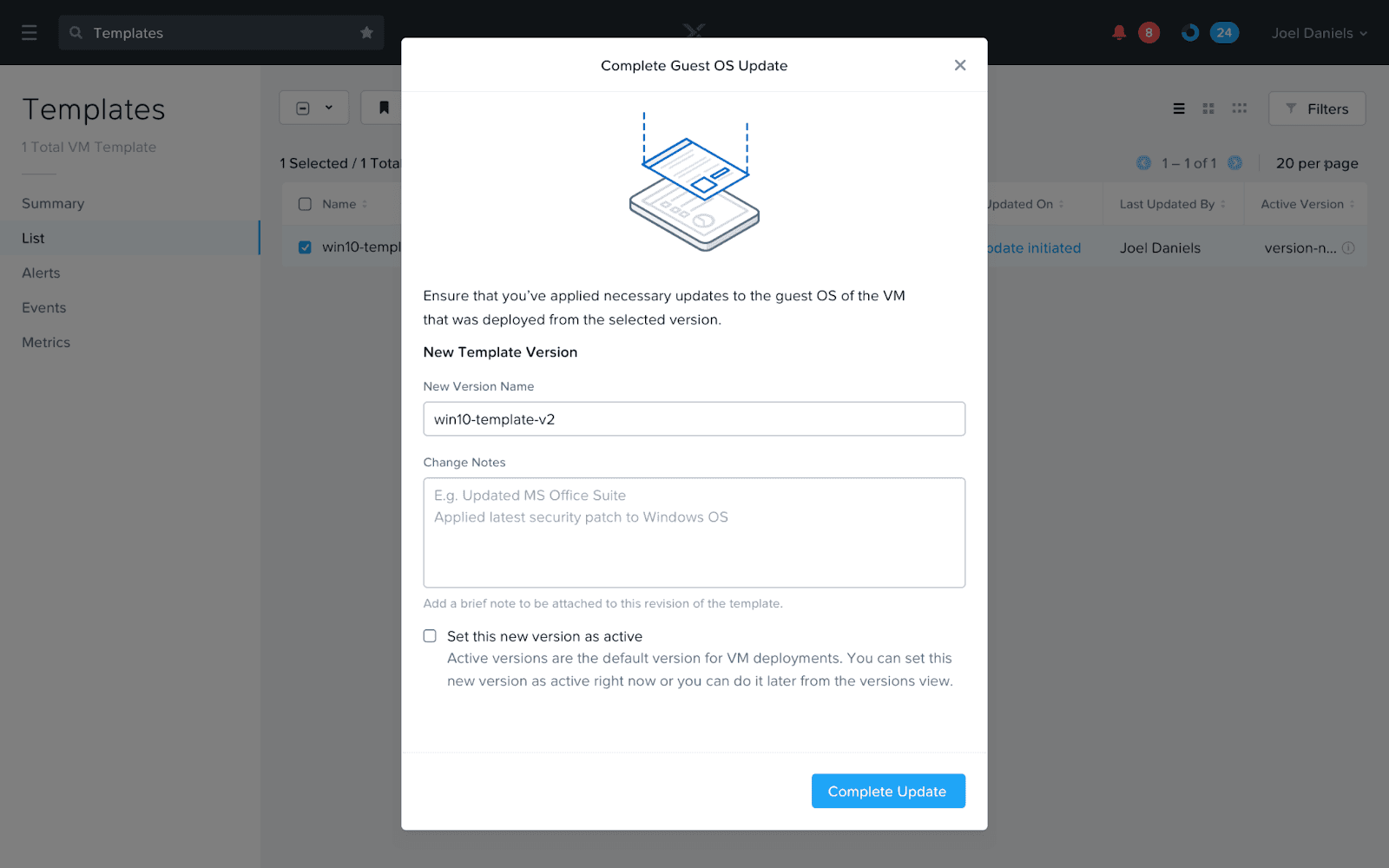
When the user completes the guest OS update, they can name this new versions and also choose if they want to set this as the active one
3. Deploying VMs from a VM Template
User Story: As an admin, I want to deploy 5 windows server VMs from a template to my cluster so that I can start the web server.
Once a Template is created, it is consumed in the “VM deployment” workflow. Here, the user can create multiple copies of VMs using this template.
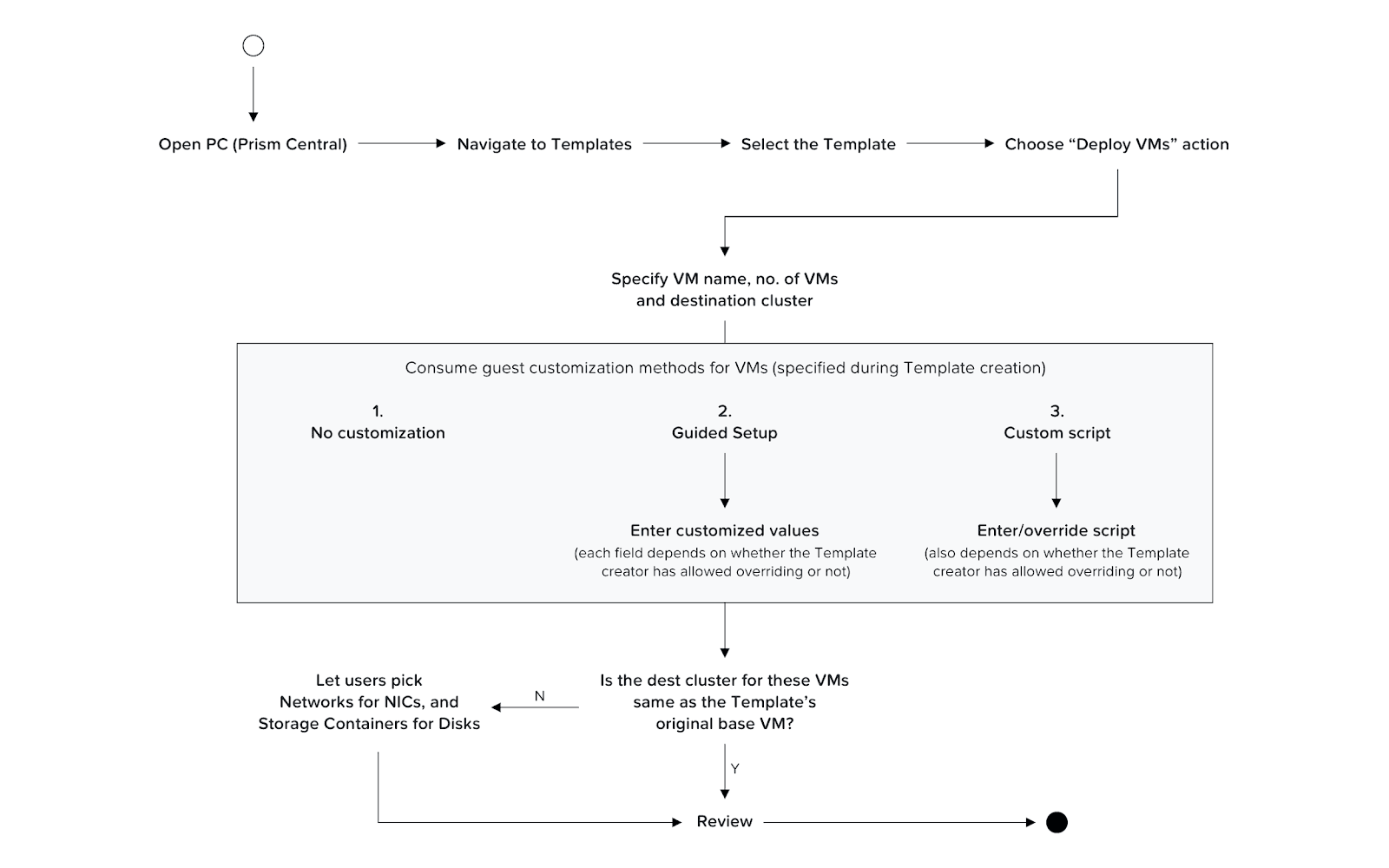
User flow diagram for deploying VMs from a VM Template
Impact
External
+37%
Hypervisor Adoption Rate
Over time, this project and others contributed to the uptick of a key adoption metric for Nutanix, “AHV Adoption as a % of Total Cores”. As of Nov 2024, the adoption rate is up to 72% (compared to 35% back in 2018).
Internal
😄
Increase in Sales Confidence
Nutanix no longer needed to support the workaround of using powered-off VMs as “golden images” as we had native VM Templates now. No more embarrassing sales discussions with new customers.
Testimony
VM Templates was released in January 2022. I worked closely with the PM on this project. After delivery, they had this feedback to share:
FYI. Some positive feedback, I was talking to AB (cloud architect) about VM templates. He tested the build with templates. Nice work Navdeep! This is the kind of feedback I like to hear, a foundational feature we’ve been waiting to get to market vs. ESXi (VMware's hypervisor).
LC,
Product Manager
I already played with that first cut…. it's like butter! Finally..
Already showed some SEs last month and they love it. It’s sooo easy (like it should be)
AB,
Cloud Architect
Reflections
How to avoid getting attached to designs
In this project, another designer and I collaborated with the Back-End team to help define initial APIs. We created early designs based on certain assumptions, but a few months later, API updates required significant UX adjustments. Initially, I resisted, but soon realised that iterating the designs was essential to align with feasible API development.
Maintain good rapport with other stakeholders
Building connections with teams like Product, Engineering, and Support can open new opportunities. For instance, a Product Manager once looped me in to help close a POC deal with a new customer related to VM Templates.
fin.